First 10 minutes on a new Windows 11 PC: the decisions that matter
A safe first-run checklist for Windows 11 26H2: record the build, start updates, check drivers, remove only obvious trials, set privacy defaults, and back up the BitLocker key.
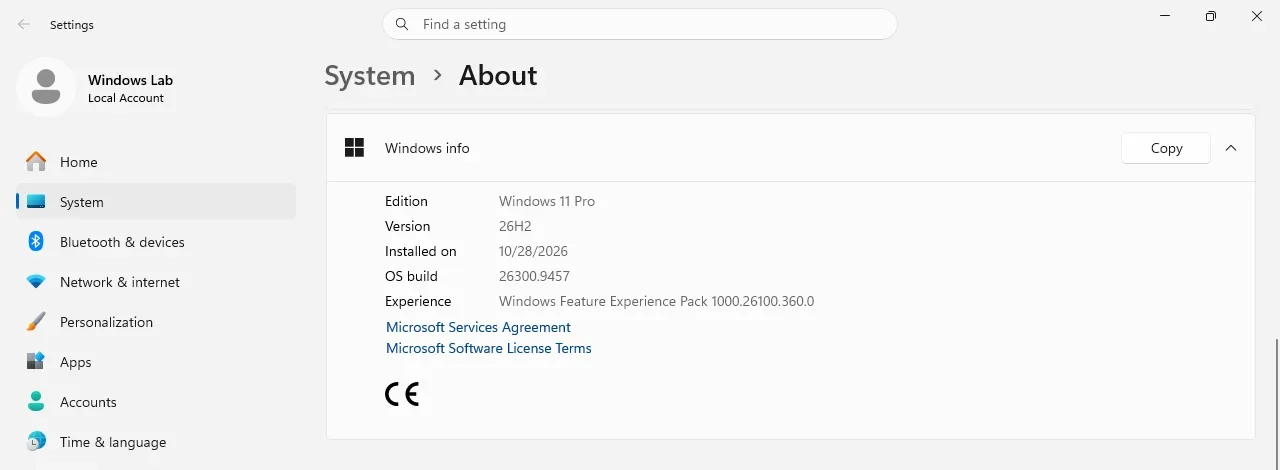
- Build
- 26300.9457
- Edition
- Pro (26H2)
- Architecture
- x64
- Support
- Lab (fresh install)
- Evidence
- E2Reproduced in the lab
- Risk
- R1Reversible setting
- Verified
- 2026-10-28
- Test machine
- PVE 9.2.2 VM 361; Windows 11 Pro 26H2 26300.9457; fresh install; VirtIO storage/net/serial drivers; RDP enabled
- Page type
- Task
Ten minutes of decisions, not ten minutes of downloads
Section titled “Ten minutes of decisions, not ten minutes of downloads”A new PC does not need a 40-step “optimization” ritual. It needs the irreversible decisions made in the right order: updates are running, drivers are not missing, the recovery key is saved, and you know what you installed. That is the ten minutes.
The ten-minute sequence
Section titled “The ten-minute sequence”| Time | Do this | Why it comes first |
|---|---|---|
| 0–1 min | Record edition, build, activation and network | You need a baseline before anything changes |
| 1–4 min | Start Windows Update and set active hours | Security fixes are the highest-value change |
| 4–6 min | Check Device Manager; install the missing OEM/GPU driver | A missing Wi-Fi/storage driver blocks everything else |
| 6–7 min | Install one browser and a password manager | This is the account surface you will actually use |
| 7–8 min | Remove obvious OEM trials only | Avoid breaking Store, Edge, WebView2 or runtimes |
| 8–9 min | Set privacy defaults you can explain | Defaults are permissive; decide once, not per app |
| 9–10 min | Back up the BitLocker recovery key and a first backup | Encryption without a key is a lockout |
| After 10 min | Power, sleep, reboot, verify | A machine that cannot sleep or reboot is not finished |
0–1 min — record the baseline
Section titled “0–1 min — record the baseline”Open Settings → System → About and note the edition and build. Open Settings → System → Activation and note whether Windows is activated. Run winver if you want the same information in one dialog.
Expected: Edition, build, activation state and network are recorded.
Run msinfo32 and check BIOS Mode, Secure Boot State and the TPM line. On a new laptop, also note the model and the Windows install date. If something goes wrong later, this is the “before” picture.
Edition: Windows 11 ProBuild: 26300.9457Firmware: UEFI, Secure Boot OnTPM: 2.0 readyIf the machine is not activated, fix that before installing a lot of software. Activation problems are easier to diagnose on a clean system.
1–4 min — start updates, then leave them alone
Section titled “1–4 min — start updates, then leave them alone”Open Settings → Windows Update, choose Check for updates, and install what is offered. Set Active hours so the PC does not reboot while you are using it. If a restart is required, take it; otherwise leave the machine alone and continue with the next step.
Expected: Updates are downloading or installing; active hours are set.
Do not use a third-party “update blocker” on a new machine. If you need to defer a feature update, use the built-in pause option and write down the date you paused until. Security updates should not be paused for months “to keep it fast”; that is how a new PC becomes an old vulnerable PC.
4–6 min — find the missing driver before it finds you
Section titled “4–6 min — find the missing driver before it finds you”Open Device Manager (devmgmt.msc). Expand Other devices and Network adapters. A yellow triangle means Windows has no working driver. Download the driver from the PC or motherboard vendor’s support page for the exact model, not from a driver-pack site.
Expected: Device Manager shows no yellow triangles; network, audio and display work.
The order that works:
- Chipset / storage driver from the OEM.
- Wi-Fi / Ethernet driver, especially if OOBE had no network.
- GPU driver from AMD, Intel or NVIDIA.
- Audio / card reader / fingerprint only if the device is actually missing.
Windows Update can supply some of these, but it is not a substitute for an OEM Wi-Fi or storage driver. In a VM, the “missing driver” is often the VirtIO disk or serial device; see the clean install page for that lab note.
6–7 min — one browser, one password manager
Section titled “6–7 min — one browser, one password manager”Install one browser from its official site. Sign in, import bookmarks if you want, and set it as default only if you mean it. Then install a password manager and turn on its browser extension.
The point is not brand loyalty. It is to stop reusing the same password across the Microsoft account, email, bank and shopping sites. A password manager is the highest-value “setup” step that is not a Windows setting.
Do not install a “PC cleaner”, “registry optimizer” or “driver updater” in this minute. They add startup work and rarely fix anything a reboot or a driver page would not.
7–8 min — remove obvious trials, not system components
Section titled “7–8 min — remove obvious trials, not system components”Open Settings → Apps → Installed apps. Sort by install date. Uninstall OEM trials, sample games and duplicate utilities you did not ask for. Leave Microsoft Store, Edge, WebView2, .NET and Visual C++ runtimes alone unless you know exactly what depends on them.
Expected: OEM trials and bundled games are gone; Store, Edge, WebView2 and runtimes remain.
Do not run a “debloat” PowerShell script on a new machine. It often removes Store, search, Widgets, WebView2 or scheduled tasks that other applications need, and it makes future updates harder to reason about. If a specific app is unwanted, remove that app. “Debloating” the whole OS is a different project with a different risk budget.
8–9 min — privacy defaults you can explain
Section titled “8–9 min — privacy defaults you can explain”Open Settings → Privacy & security and make four decisions:
| Setting | Practical default | Trade-off |
|---|---|---|
| Diagnostic data | Required only | Optional data helps Microsoft debug; it is not required for normal use |
| Advertising ID | Off | Ads still appear; they are less personalized |
| Location | Off unless maps/find-my-device need it | Some weather/map features become less precise |
| Camera / microphone | Let apps ask | Check per-app lists instead of granting globally |
Also look at Settings → Privacy & security → Recommendations & offers if you do not want suggested content in Settings and the Start menu. Make the choice once; do not install a “privacy script” that changes dozens of policies you cannot explain.
9–10 min — encryption and a first backup
Section titled “9–10 min — encryption and a first backup”Open Settings → Privacy & security → Device encryption (or Manage BitLocker). If encryption is on, back up the recovery key. If it is off, decide whether to turn it on; if you do, save the key first.
Expected: The recovery key is saved to the Microsoft account or printed; you know where it is.
A recovery key is not a password. If the motherboard or TPM changes and you do not have the key, the data is gone. Save it to the Microsoft account and keep an offline copy somewhere you can find after a disk failure.
Then make one backup decision:
- Windows Backup / OneDrive for Documents, Desktop and Pictures.
- File History to an external drive.
- A disk image if you want a full rollback.
Do not enable BitLocker and skip the backup in the same ten minutes. Pick one, verify it, and add the other later.
After the ten minutes — power and a real reboot
Section titled “After the ten minutes — power and a real reboot”Run powercfg /a to see which sleep states are available. Set Settings → System → Power & battery to a mode you understand (Balanced is a good default). Then reboot once and confirm the machine comes back with network and display working.
Expected: The PC sleeps and wakes; after a reboot the network, audio and display still work.
A new PC that cannot sleep, wakes in a bag, or loses Wi-Fi after reboot is not “set up”. Fix that before installing games or a development toolchain.
What the lab actually exercised (E2)
Section titled “What the lab actually exercised (E2)”| Area | VM 361 result |
|---|---|
| Clean install, edition/build | Windows 11 Pro 26H2, 26300.9457 |
| UEFI / Secure Boot / TPM | UEFI, Secure Boot On, TPM 2.0 ready |
| VirtIO storage / network / serial | Installed; qemu-ga connected after vioser.inf |
| Local admin + RDP | Working; 3389 listening, LAN TCP open |
| Windows Update completion | Not completed in this run |
| BitLocker / backup | Not tested |
| OEM trial removal | Not applicable (clean ISO, no OEM image) |
| Browser / password manager / privacy UI | Not tested |
The page’s order is the part backed by the install and driver work. The update, encryption and backup steps are standard Windows procedures, but this run did not finish them; treat them as E1 until the lab records them.
What not to do in the first ten minutes
Section titled “What not to do in the first ten minutes”- Do not install a “lite” ISO or a third-party debloat script.
- Do not disable Windows Update, Defender or the firewall “for speed”.
- Do not enable BitLocker without saving the recovery key.
- Do not remove Store, Edge, WebView2, .NET or VC++ runtimes to save space.
- Do not judge performance before drivers and updates are done.
Related pages
Section titled “Related pages”- Clean install Windows 11 26H2 — if the machine is not installed yet.
- Which Windows 11? — edition and servicing branch.
- Gaming measurement — measure before tweaking.
- WSL2 + Dev Drive on D: — for developers who want the toolchain off C:.