Windows 11 install preflight: UEFI, Secure Boot, TPM 2.0 and 10 checks
Run these ten checks before you boot Windows 11 setup: firmware mode, Secure Boot, TPM, CPU support, disk, network, backup, licence and recovery.
- Build
- 26300.9457
- Edition
- Pro (26H2)
- Architecture
- x64
- Support
- Lab (preflight)
- Evidence
- E2Reproduced in the lab
- Verified
- 2026-10-28
- Test machine
- PVE 9.2.2 VM 361; OVMF, vTPM 2.0, Secure Boot; Windows 11 Pro 26H2
- Page type
- Checklist
The short answer
Section titled “The short answer”Windows 11 setup fails for boring reasons: firmware in Legacy mode, Secure Boot off, TPM disabled, an unsupported CPU, a disk in the wrong mode, or no network driver for OOBE. Check these before you delete a partition.
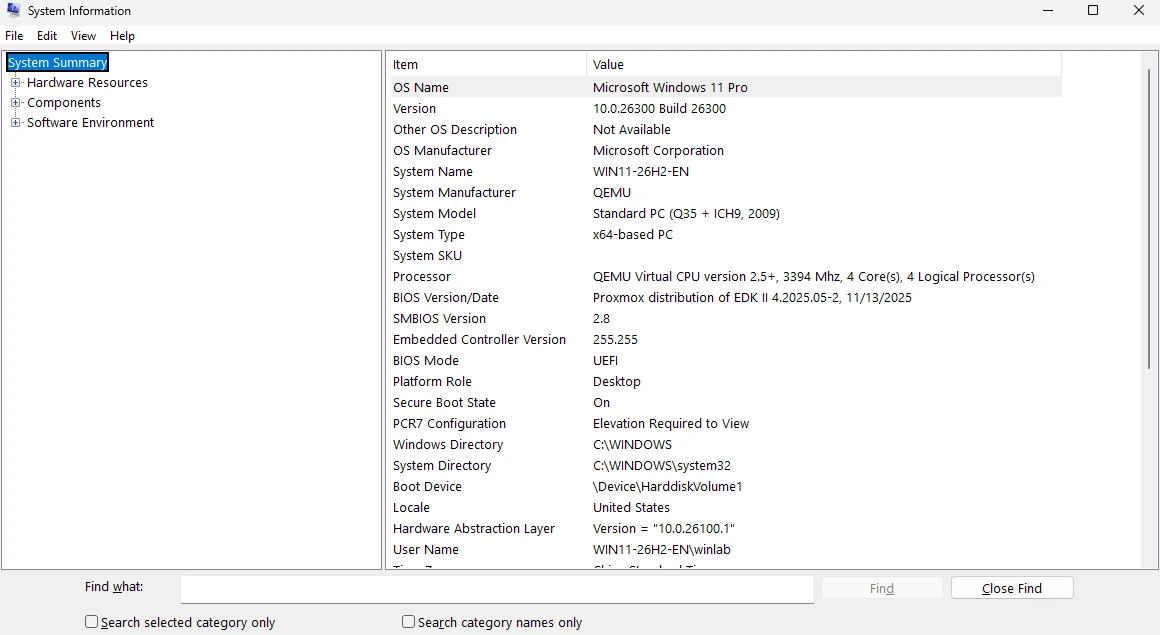
msinfo32 on lab VM 361: UEFI, Secure Boot On, Windows 11 Pro. This is the state to reproduce before setup, not after. Click to open full size.The ten checks
Section titled “The ten checks”| # | Check | Pass condition | How to check |
|---|---|---|---|
| 1 | Firmware mode | UEFI, not Legacy/CSM | msinfo32 → BIOS Mode |
| 2 | Secure Boot | On and capable | msinfo32, firmware setup |
| 3 | TPM | 2.0, enabled, ready | tpm.msc, Get-Tpm |
| 4 | CPU | On the supported list | Vendor + Microsoft list |
| 5 | RAM | 4GB minimum, 8GB+ practical | Task Manager / systeminfo |
| 6 | System disk | 64GB minimum, 128GB+ practical | Disk Management |
| 7 | Disk mode | AHCI/NVMe, not RAID without driver | Firmware storage settings |
| 8 | Network | Windows can see Ethernet/Wi-Fi | Device Manager, OOBE test |
| 9 | Backup | Files and BitLocker key saved elsewhere | Your backup, not the same disk |
| 10 | Recovery | USB media and a way to boot it | Test before wiping |
Firmware, Secure Boot and TPM
Section titled “Firmware, Secure Boot and TPM”- UEFI vs Legacy. Windows 11 requires UEFI. If
msinfo32says Legacy, converting an existing installation is possible but risky; a clean install is usually the honest path. - Secure Boot. “Capable” is not “enabled”. Enable it in firmware. If you dual boot Linux, plan the MOK/shim path before you turn it on.
- TPM 2.0.
tpm.mscshould say the TPM is ready. If it says “not present”, enable the firmware TPM (Intel PTT / AMD fTPM) or install the discrete module. Do not use a bypass script. - Virtual machines. Use OVMF, a vTPM 2.0 and Secure Boot. A BIOS/SeaBIOS VM with no TPM is not a Windows 11 reference machine.
Get-Tpm | Select-Object TpmPresent, TpmReady, TpmEnabled, ManufacturerNameConfirm-SecureBootUEFIConfirm-SecureBootUEFI can fail if you are not on UEFI; that failure is itself a useful signal.
Disk and driver checks
Section titled “Disk and driver checks”- Open Disk Management and note the disk number. Setup’s “Disk 0” is not always the disk you think.
- Check whether the controller is Intel RST/RAID. If Windows Setup cannot see the disk, load the OEM storage driver rather than switching modes blindly.
- For a VM, attach VirtIO drivers before setup if you use a VirtIO disk; otherwise Setup will show no disk.
- Check the network adapter. OOBE may ask for a connection; a missing Wi-Fi driver can strand you.
What to prepare before booting
Section titled “What to prepare before booting”- A full backup of files, browser profiles and licence keys.
- The BitLocker recovery key, saved outside the machine.
- The Windows ISO and a second copy of the install media if possible.
- The OEM storage/network driver on a second USB.
- The Microsoft account or local-account decision (see the first-hour page).
Lab note
Section titled “Lab note”VM 361 uses OVMF, vTPM 2.0 and Secure Boot, and reports UEFI/Secure Boot On. That is why the clean install can follow the supported path. A VM without a TPM is useful for other tests, but not for “Windows 11 supported” evidence.
Hardware requirements and firmware
Section titled “Hardware requirements and firmware”The install path above assumes the machine can actually run Windows 11. If you are checking a machine before wiping it — or you are about to change TPM/Secure Boot/CSM — read these first:
- Hardware requirements by Windows version — one matrix for 26H2, LTSC and Server.
- UEFI settings that change how Windows behaves — and the order to change them.
- Used PC checklist — when the machine is not new.