Windows 11 on Proxmox VE: q35, OVMF, vTPM, VirtIO and snapshots
Build a Windows 11 26H2 VM on PVE 9.2.2 with UEFI, vTPM 2.0, VirtIO drivers, QEMU Guest Agent and a snapshot chain that can be rebuilt.
- Build
- 26300.9457
- Edition
- Pro (26H2)
- Architecture
- x64
- Support
- Lab (PVE VM 361)
- Evidence
- E2Reproduced in the lab
- Verified
- 2026-10-28
- Test machine
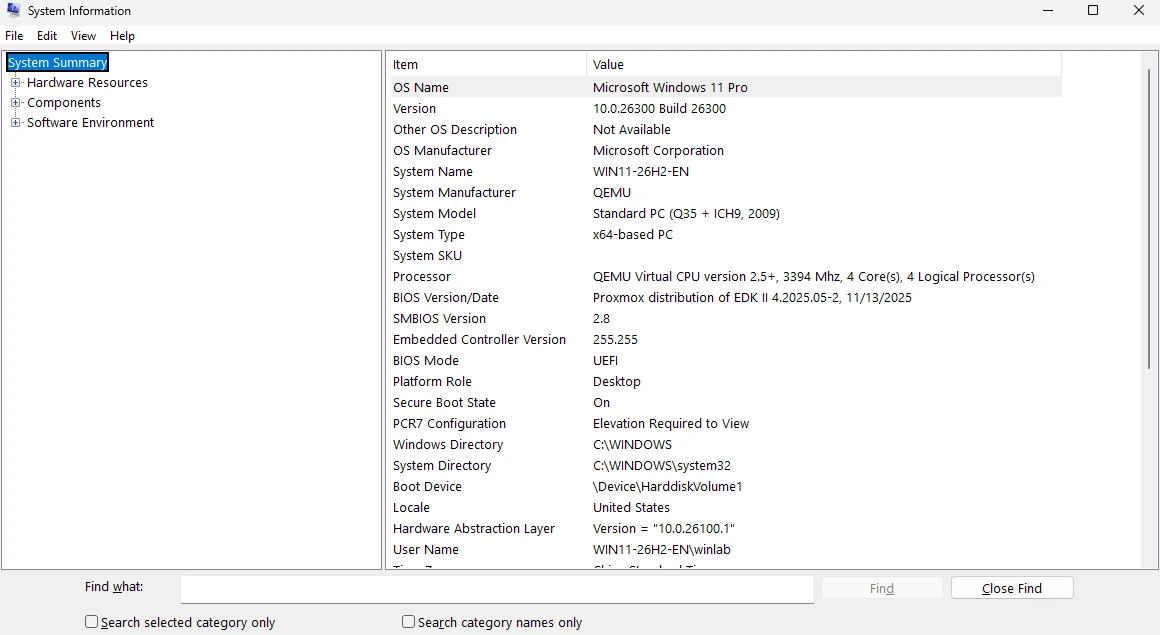
- PVE 9.2.2 VM 361; q35/OVMF/vTPM 2.0/Secure Boot; 8GB/4 vCPU; SATA system disk + VirtIO NIC/vioser; Windows 11 Pro 26300.9457
- Page type
- Lab
The short answer
Section titled “The short answer”A Windows 11 VM on PVE is not “create VM, next, next”. The supported configuration is:
- q35 machine;
- OVMF (UEFI) firmware;
- EFI disk + vTPM 2.0;
- Secure Boot if you want the Windows 11 baseline;
- VirtIO disk/network with the driver ISO available;
- QEMU Guest Agent installed;
- a snapshot after the clean state.
Our VM 361 uses a SATA system disk because Windows Setup could not see the VirtIO SCSI disk before drivers. That is a VM workaround, not a physical-hardware recommendation.
VM settings that matter
Section titled “VM settings that matter”| Setting | Lab value | Why |
|---|---|---|
| Machine | q35 | Modern PCIe/PCI layout |
| BIOS | OVMF (UEFI) | Windows 11 requirement |
| EFI disk | Enabled | UEFI variables |
| TPM | vTPM 2.0 | Windows 11 requirement |
| Secure Boot | On | Supported baseline |
| CPU | host |
Nested virtualization/performance |
| RAM | 8GB | Practical for Windows 11 + browser |
| Disk | 256GB, SATA (lab) | Setup visibility before VirtIO |
| Network | VirtIO | Performance; needs driver |
| Display | Standard/SPICE | Console access |
| Agent | QEMU Guest Agent | Shutdown/IP reporting |
Build order
Section titled “Build order”- Upload the official Windows 11 ISO and the VirtIO driver ISO to PVE storage.
- Create the VM with q35/OVMF, EFI disk, vTPM, 8GB RAM, 4 vCPU,
hostCPU. - Add a disk and a VirtIO network device. Add the VirtIO ISO as a second CD-ROM.
- Boot the Windows ISO, install Windows, and load the VirtIO storage driver if the disk is invisible.
- Install the VirtIO network/serial/balloon drivers from the driver ISO.
- Install QEMU Guest Agent, then verify from the host.
- Install Windows updates and the vendor tools you need.
- Shut down cleanly and take a snapshot named for the state.
Verify the guest
Section titled “Verify the guest”winverGet-PnpDevice -Status ErrorGet-Service QEMU-GAOn the PVE host:
qm agent 361 pingqm guest cmd 361 get-osinfoIf the agent does not respond, check the VirtIO serial device and the guest service. A VM can run without the agent, but snapshots/shutdown/IP reporting are less graceful.
qm config sanity check
Section titled “qm config sanity check”From the PVE host, confirm the VM is what you think it is:
qm config 361 | egrep '^(machine|bios|efidisk0|tpmstate0|scsi0|sata0|net0|agent):'Expected shape for this lab: machine: q35, bios: ovmf, an efidisk0, a tpmstate0, a disk, net0 on VirtIO and agent: 1. If bios is SeaBIOS or there is no TPM, Windows 11 may install but not in the supported configuration.
Troubleshooting matrix
Section titled “Troubleshooting matrix”| Symptom | Check | Fix |
|---|---|---|
| Setup cannot see the disk | Disk bus + VirtIO ISO | Load the VirtIO storage driver, or use SATA for the lab |
| No network after install | VirtIO NIC driver | Install from the VirtIO ISO, then reboot |
| Agent not running | Get-Service QEMU-GA |
Install the agent, enable the VirtIO serial device |
| Very slow console | Display/SPICE settings | Use SPICE or RDP; do not judge performance from the console |
| Snapshot grows forever | Snapshot chain | Consolidate/delete old snapshots; keep a separate backup |
Snapshots
Section titled “Snapshots”Use snapshots for lab state, not as your only backup:
win26h2-pre-wsl— clean installwin26h2-wsl2-devdrive— WSL/Dev Drivewin26h2-hvci-off/win26h2-hvci-on— HVCI experiment
Snapshots live on the PVE storage and can grow; keep a separate backup of anything you cannot rebuild. Do not snapshot a running VM with an active database and call it consistent.
What this page does not do
Section titled “What this page does not do”- No GPU passthrough (see the separate page).
- No activation guidance.
- No claim that a VM score equals bare metal.
Host sizing and nested virtualisation
Section titled “Host sizing and nested virtualisation”- Proxmox host memory: what Windows guests really cost — measured on a 31.2GB host running two 8GB guests.
- A mini PC as a Proxmox host — cores, RAM, NIC and storage sizing.
- Virtualisation flags — why
--cpu hostis needed for WSL2 inside the guest.